Install and activate
Put RepoGates in Chrome or Edge, sign in on the website, and activate the extension — about two minutes.
Install the extension
RepoGates is a Manifest V3 extension for Chrome and Edge (Chrome 116 or newer). There is one listing, on the Chrome Web Store. It is unlisted, so the link is the way in; searching the store will not find it. Then sign in on the website and activate the extension (below).
In Chrome
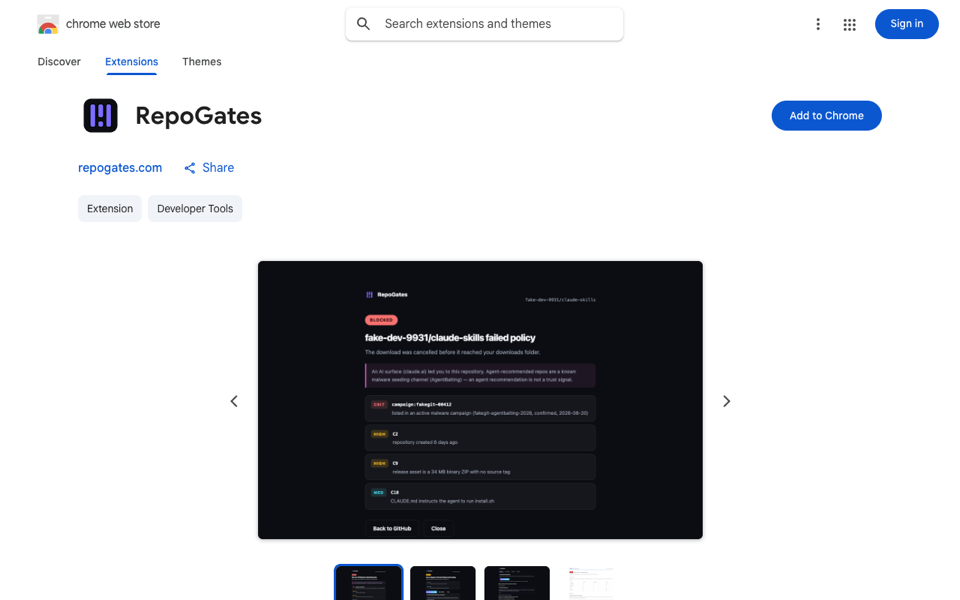
- Open the RepoGates listing.
- Select Add to Chrome, then Add extension when Chrome lists what the extension may read.
- Pin it from the puzzle-piece menu if you want its icon in the toolbar.
In Microsoft Edge
Edge installs extensions from the Chrome Web Store. RepoGates has no Edge Add-ons listing yet, so the Chrome listing is the way in on Edge too.
- Open the same RepoGates listing in Edge.
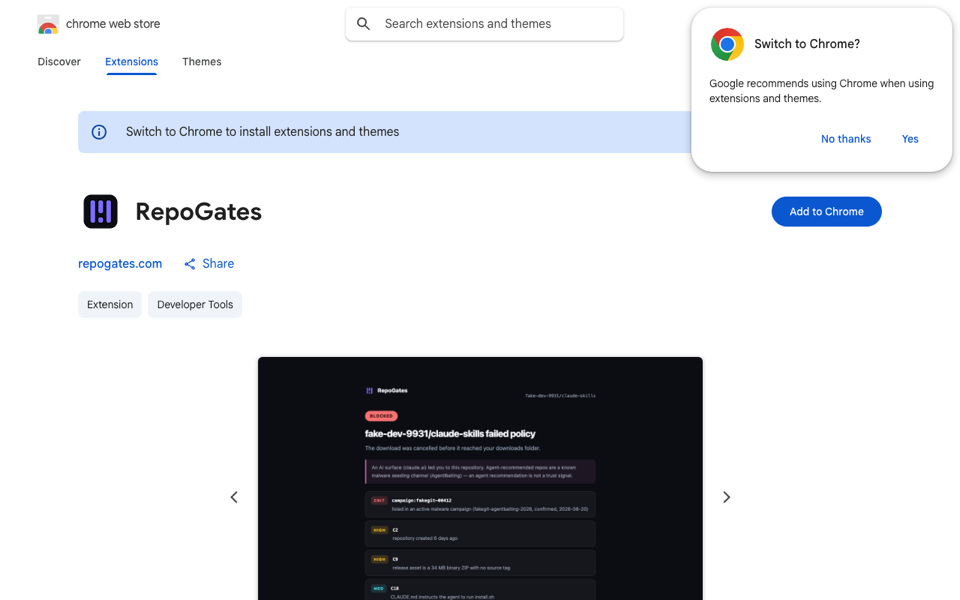
- Google's page suggests switching to Chrome. Choose No thanks; you do not need Chrome.
- The first time, Edge shows Allow extensions from other stores at the top of the window. Select it, then Allow. Edge asks this once per profile.
- Select Add to Chrome. The button keeps Google's wording in Edge. Then select Add extension.
Developer install (unpacked)
If you have a development build (a zip of the extension):
- Unzip it into a folder you will keep — Chrome loads the extension from that folder, so deleting it removes the extension.
- Open
chrome://extensions(Edge:edge://extensions). - Turn on Developer mode (top right in Chrome, left sidebar in Edge).
- Click Load unpacked and select the folder containing
manifest.json.
Chrome shows a "Disable developer mode extensions" reminder for unpacked extensions — that is normal for this install method and goes away once the store listing exists.
Sign in on the website
Sign in at repogates.com/account with Google or Microsoft. We receive your email address and nothing else; no password ever reaches us. Signing in starts your free trial and registers the browser you signed in from as a device (devices).
Activate the extension
Signing in on the website is not enough on its own: the extension is a separate installation and needs its own credential. On your account page the Activate extension button appears once RepoGates is installed in that browser — press it and the extension can assess repositories as you. One sign-in, no code to copy.
What actually crosses over is not the token your browser tab is using. The page asks the service to mint a second, extension-only session; the two are revoked, expire and can be stolen independently, and only pages served from repogates.com are allowed to talk to the extension at all. Removing that browser under Your devices deactivates the extension with it.
The extension's own settings page confirms the state under the trial box: Activated from repogates.com, or a prompt to activate. Until it is activated, a cold assessment reports NOT CHECKED with a sign-in link rather than a guess — while known-malware blocklist entries are still blocked and cached verdicts still resolve.